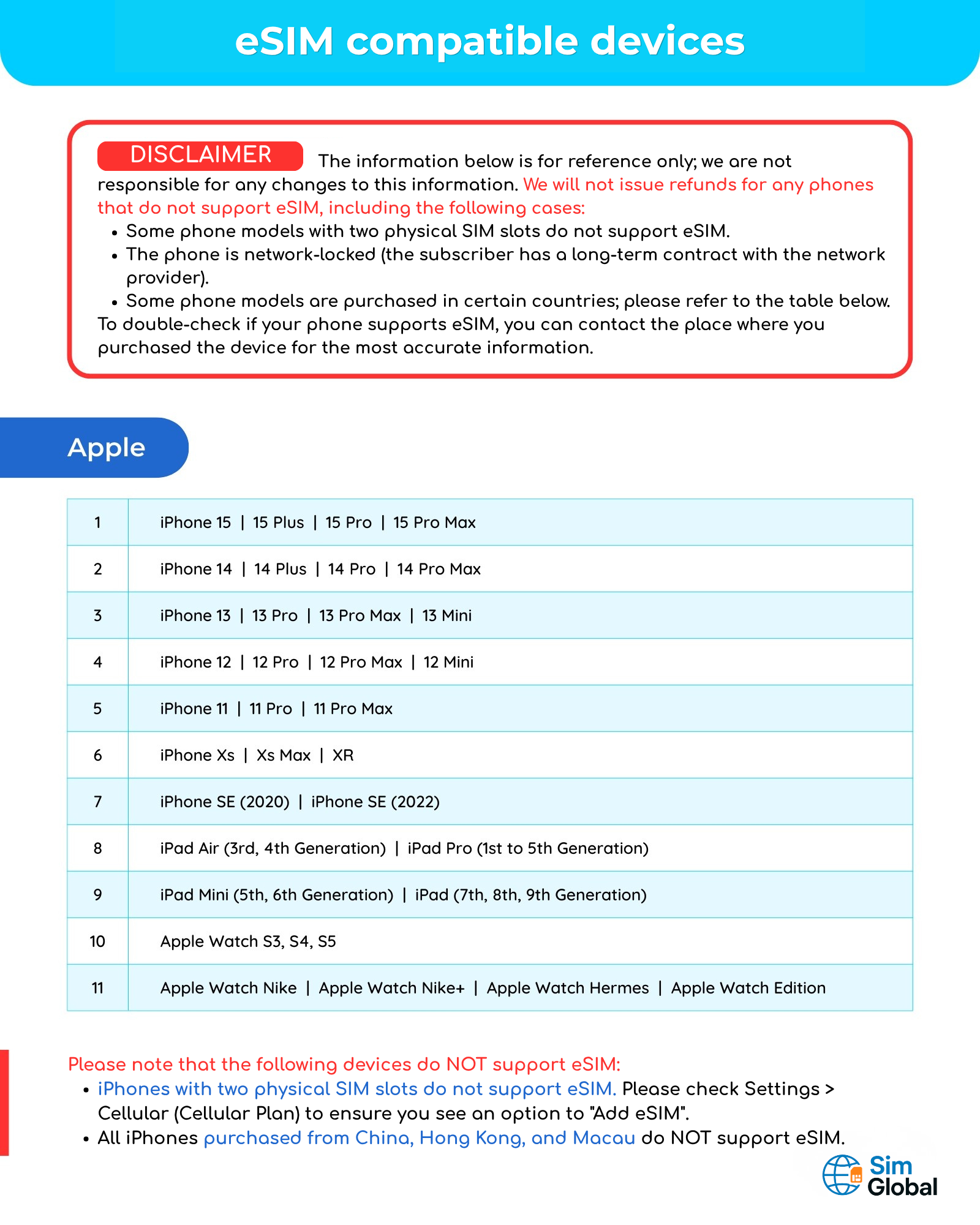
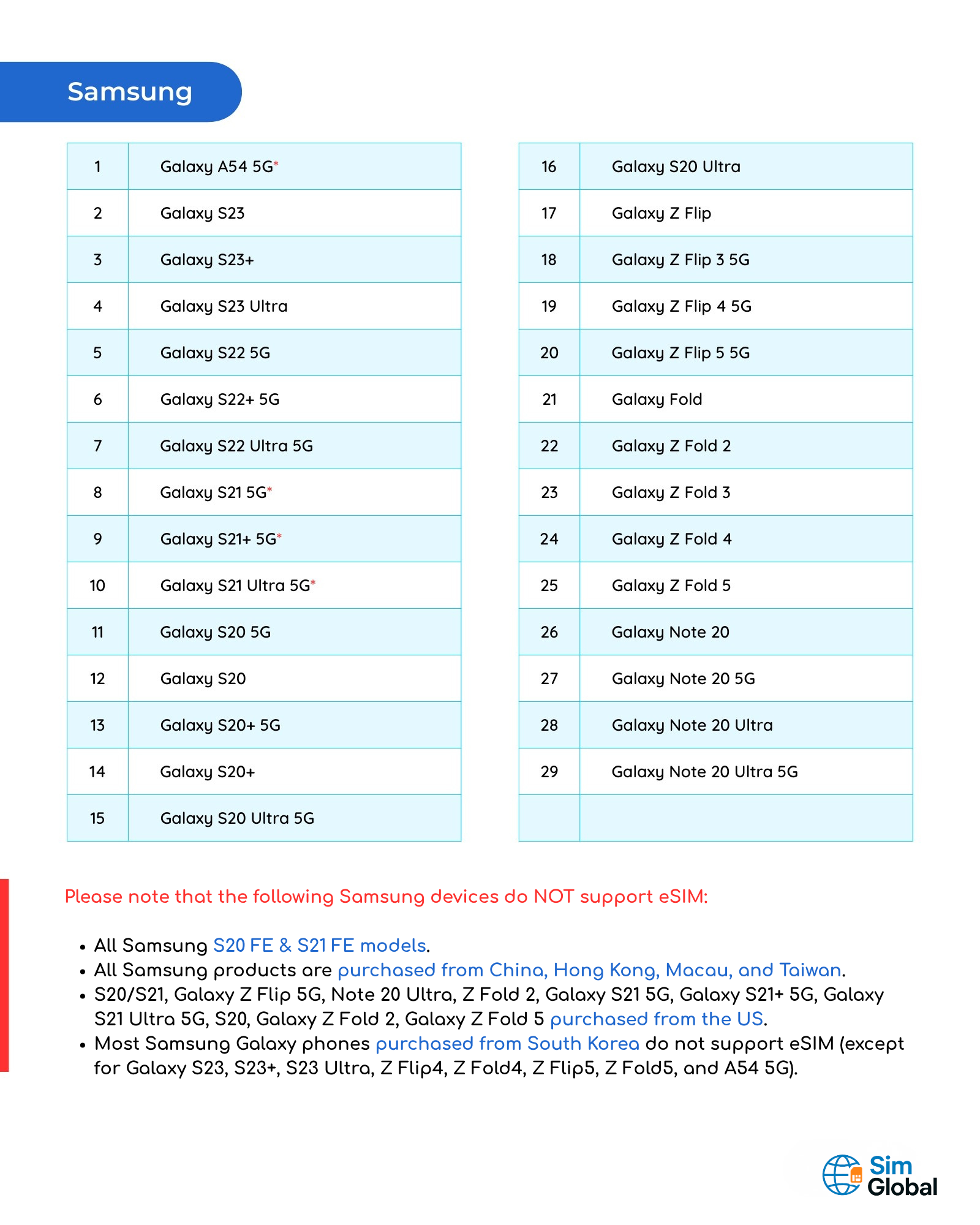
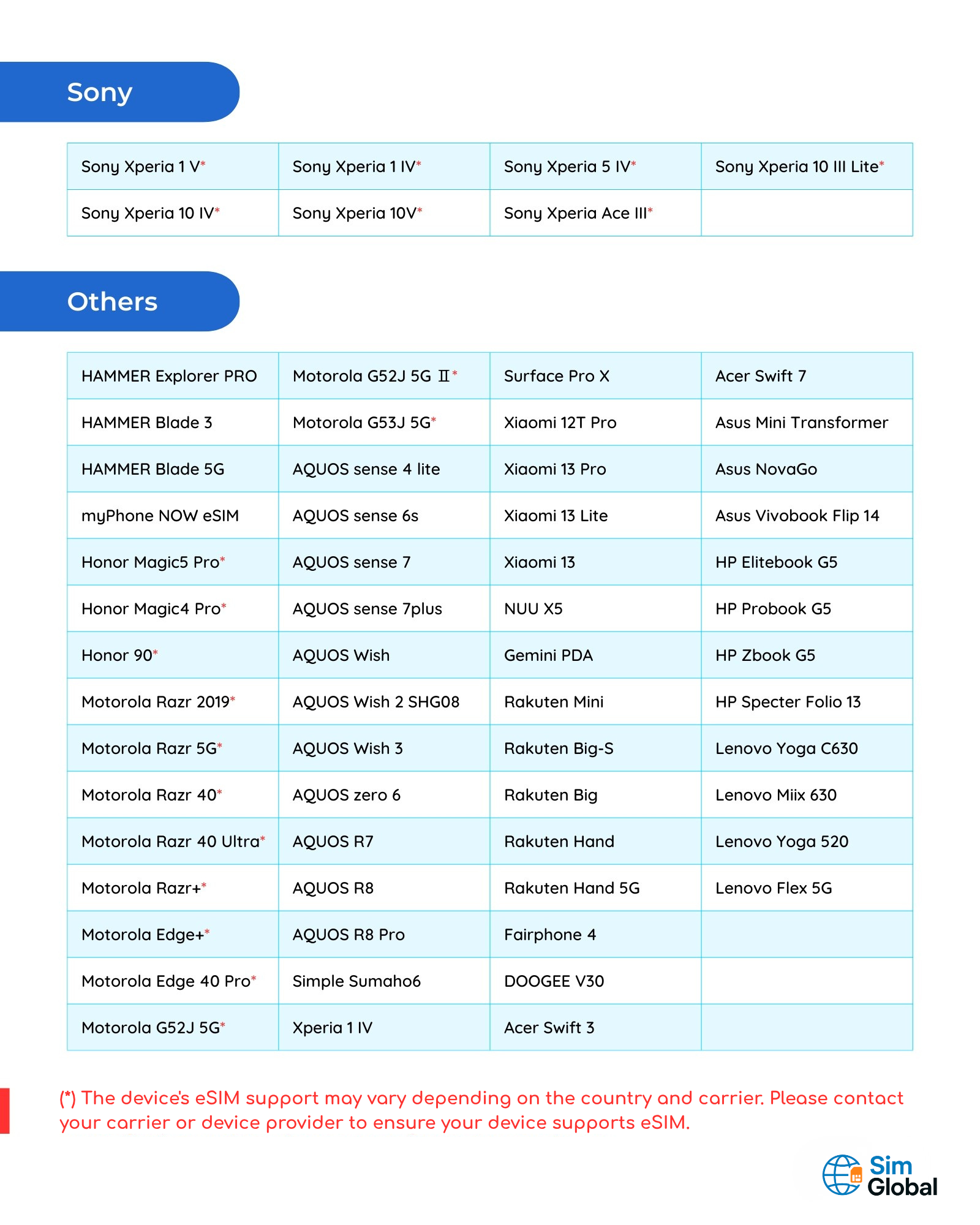
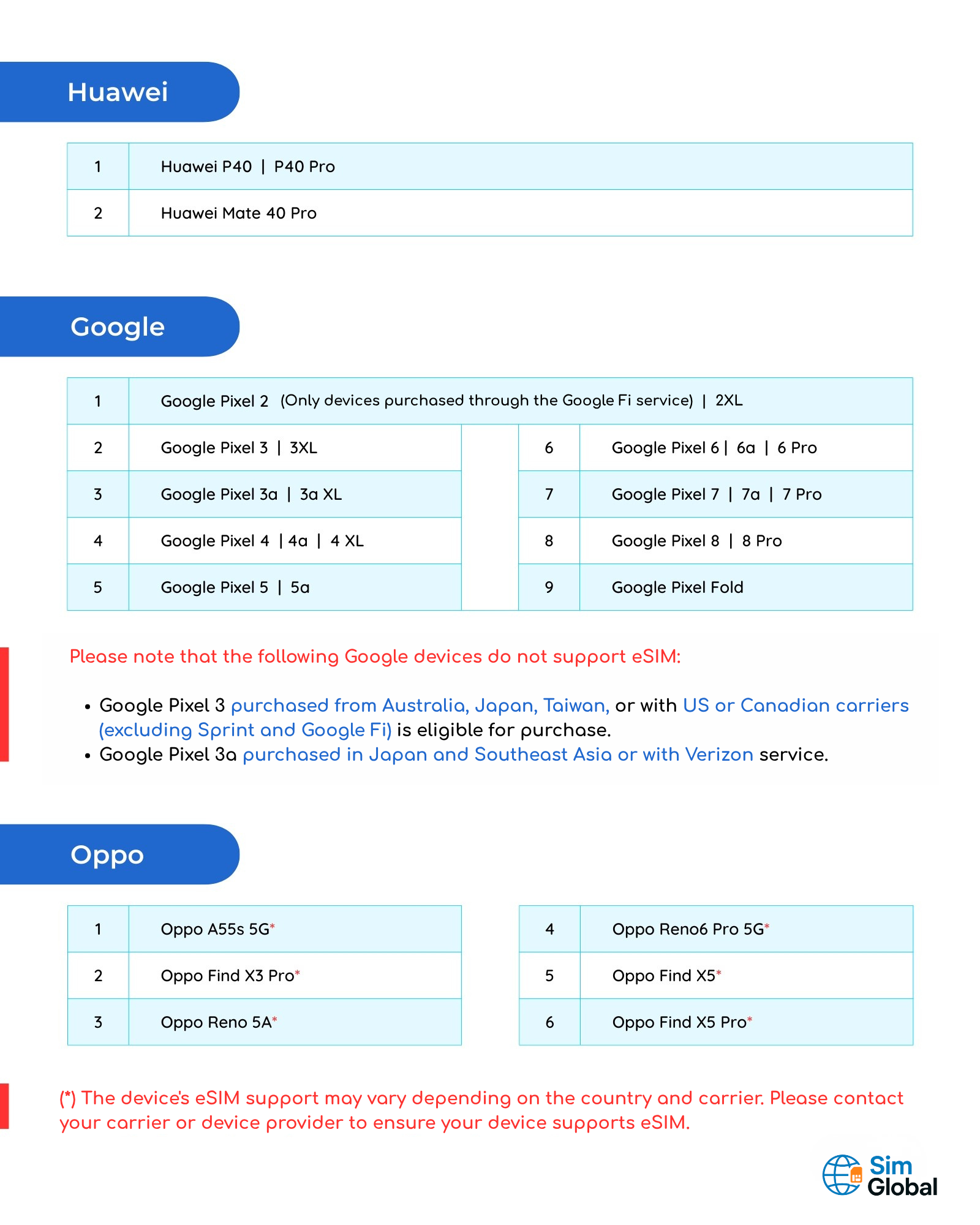
How to Check on Your Device
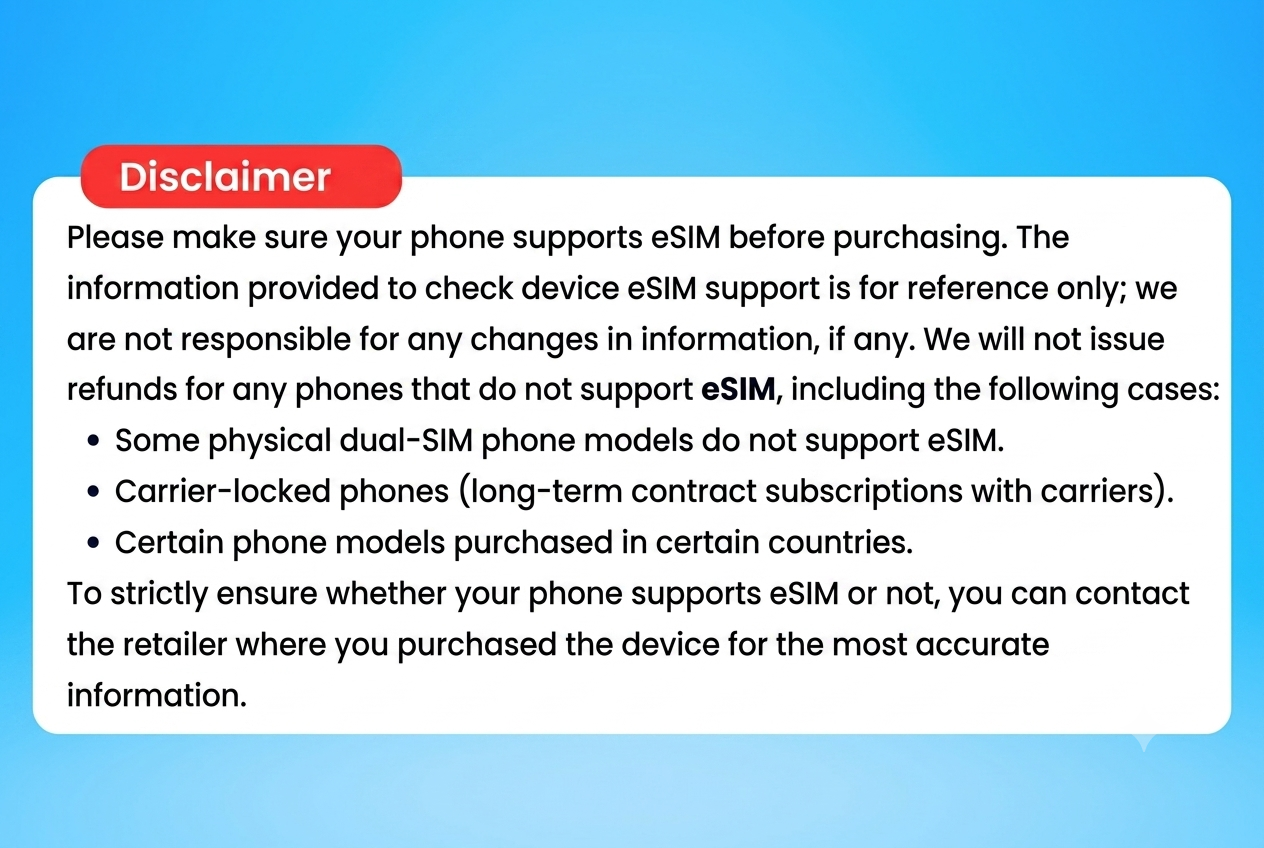
iOS (iPhones, iPads)
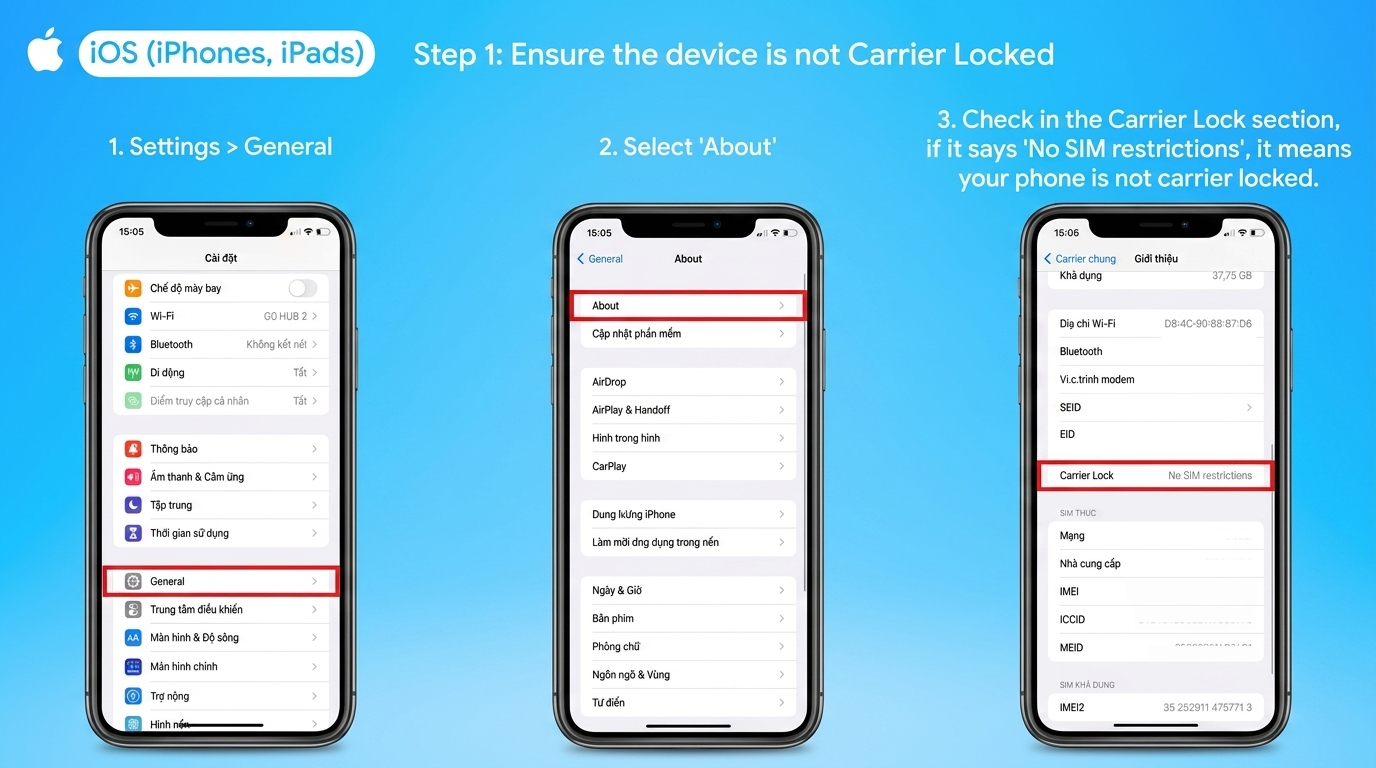
- Step 1: Make sure your device is not carrier-locked.
- Go to Settings > General > About.
- Check the Carrier Lock field. If it shows "No SIM restrictions", your device is unlocked.
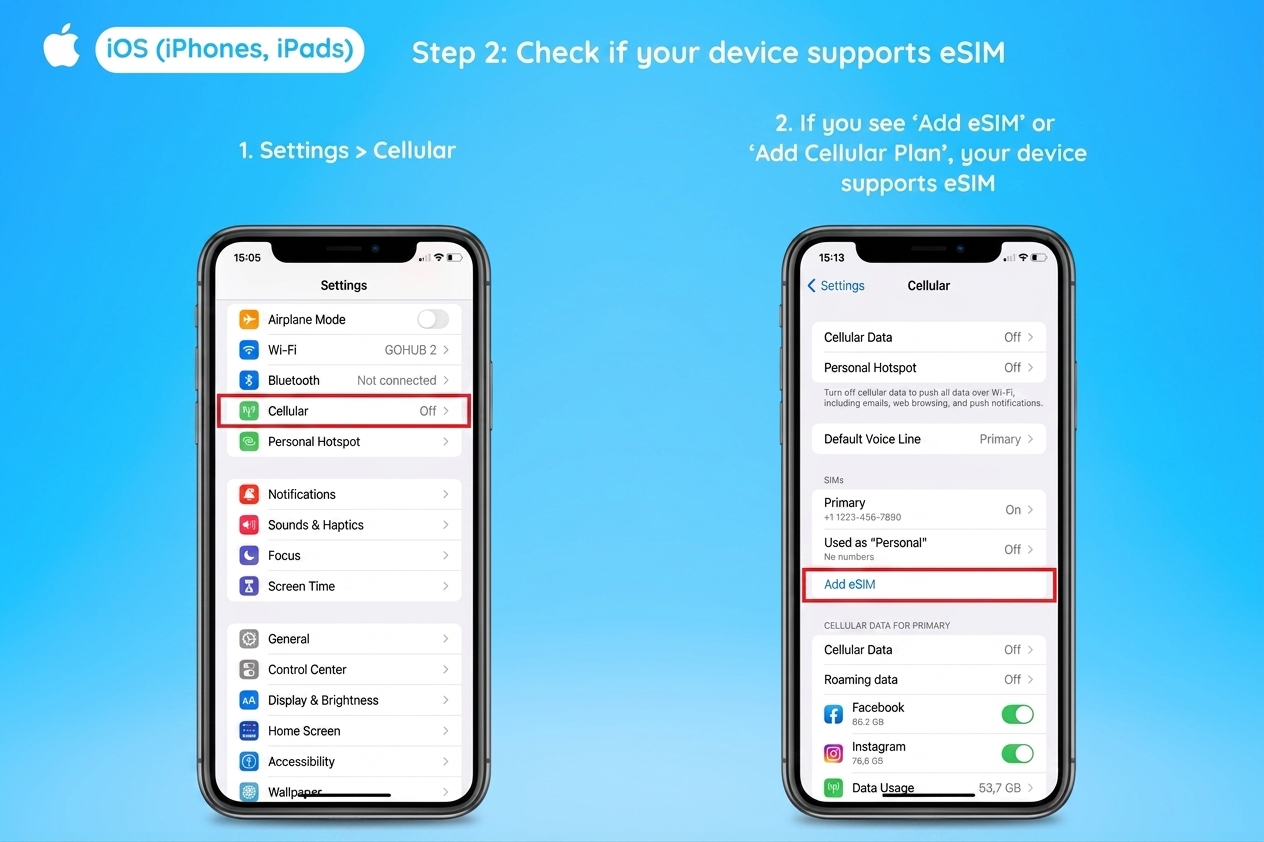
- Step 2: Check whether your device supports eSIM.
- Go to Settings > Cellular.
- Check the SIM section. If you see "Add eSIM" or "Add Cellular Plan", your device supports eSIM.
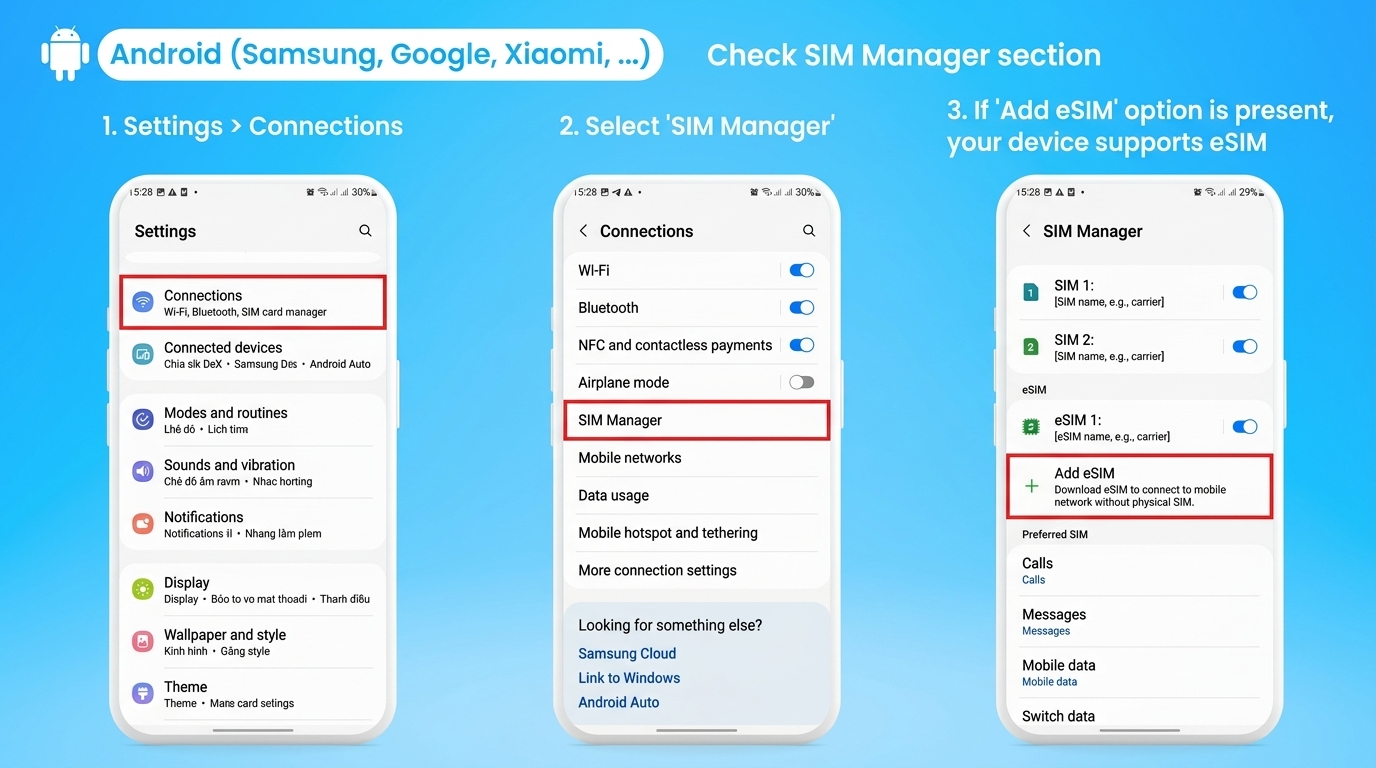
Android (Samsung, Google, Xiaomi, …)
- Step 1: Go to Settings > Connections.
- Step 2: Check SIM Manager. If you see "Add mobile plan", your phone supports eSIM.
Steps to Purchase and Install
- Purchase on simglobal.vn.
- Receive a confirmation email from SimGlobal (includes: order confirmation, payment success, and eSIM info email).
- Open the "eSIM Information" email and follow the installation instructions below.
Important Notes Before Use
- Install the eSIM 6–12 hours before your flight.
- eSIM can only be installed with an active Internet connection.
- Do not enable Data Roaming before arriving in the destination country to avoid automatically starting the usage period.
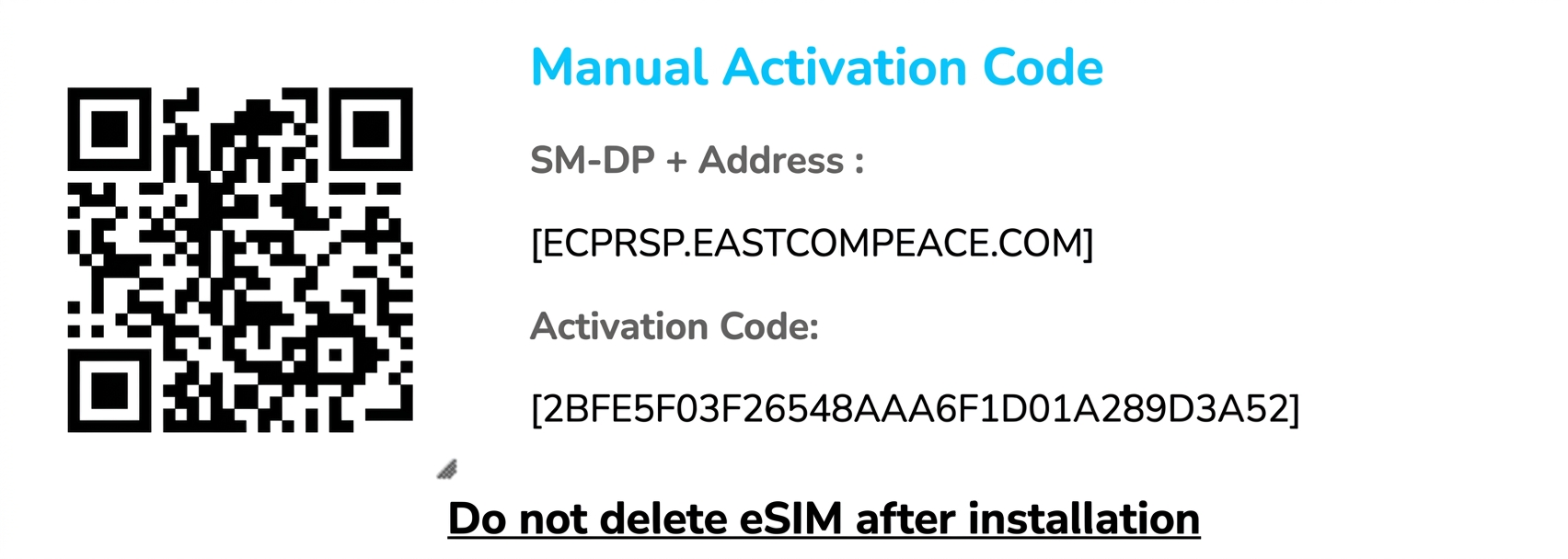
- Do not delete the eSIM after activation. eSIMs can only be activated once and cannot be restored after deletion.
- Once installed, the eSIM cannot be transferred to another device.
Installation Guide for iOS
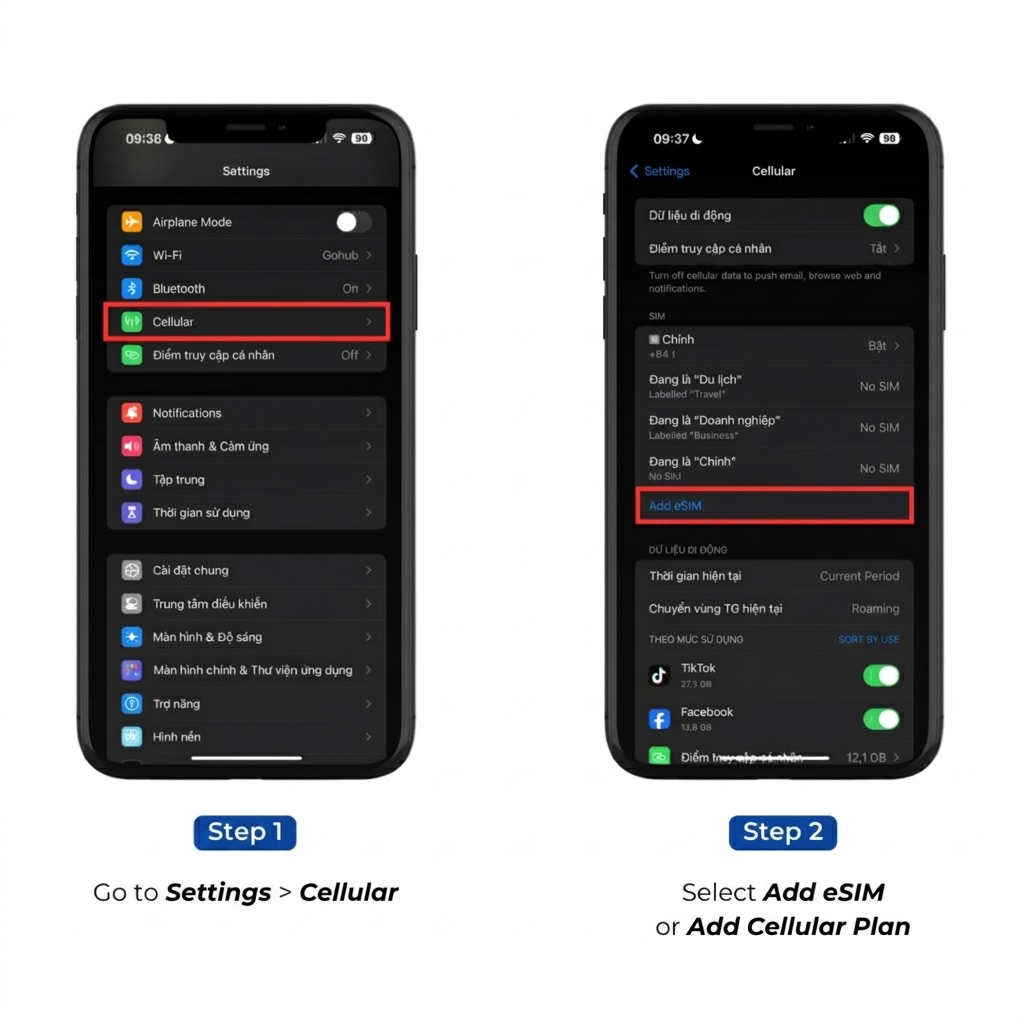
- Go to Settings > Cellular.
- Tap Add eSIM or Add Cellular Plan.
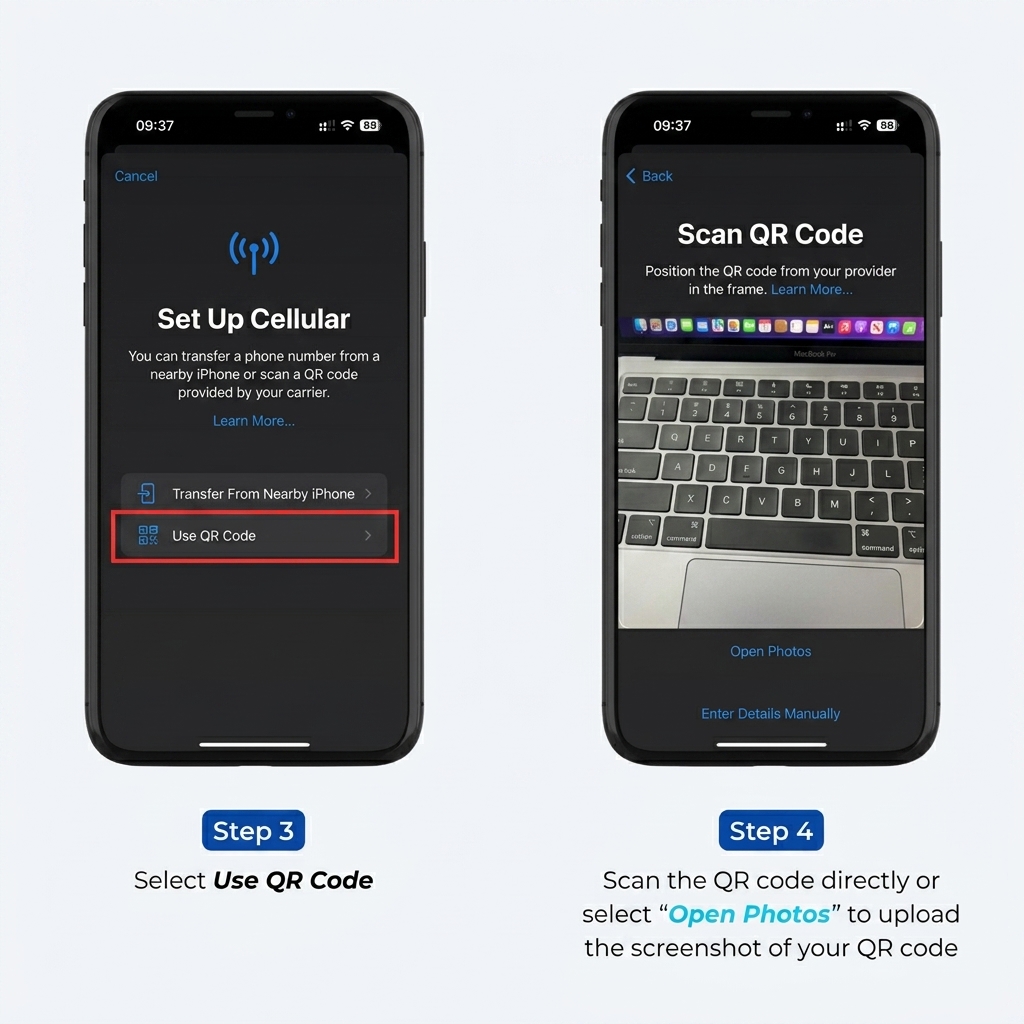
- Select Use QR Code.
- Scan the QR code sent by SimGlobal via email, or choose Enter Details Manually if you cannot scan. You can also tap Open from Photos to use a saved QR image (iOS 17+).
- Tap Next and complete the setup.
- When you arrive in the destination country, enable Data Roaming and Cellular Data to connect.
* eSIM validity starts from the moment of installation. * The QR photo upload feature is only available on iOS 17 and later.
Installation Guide for Android
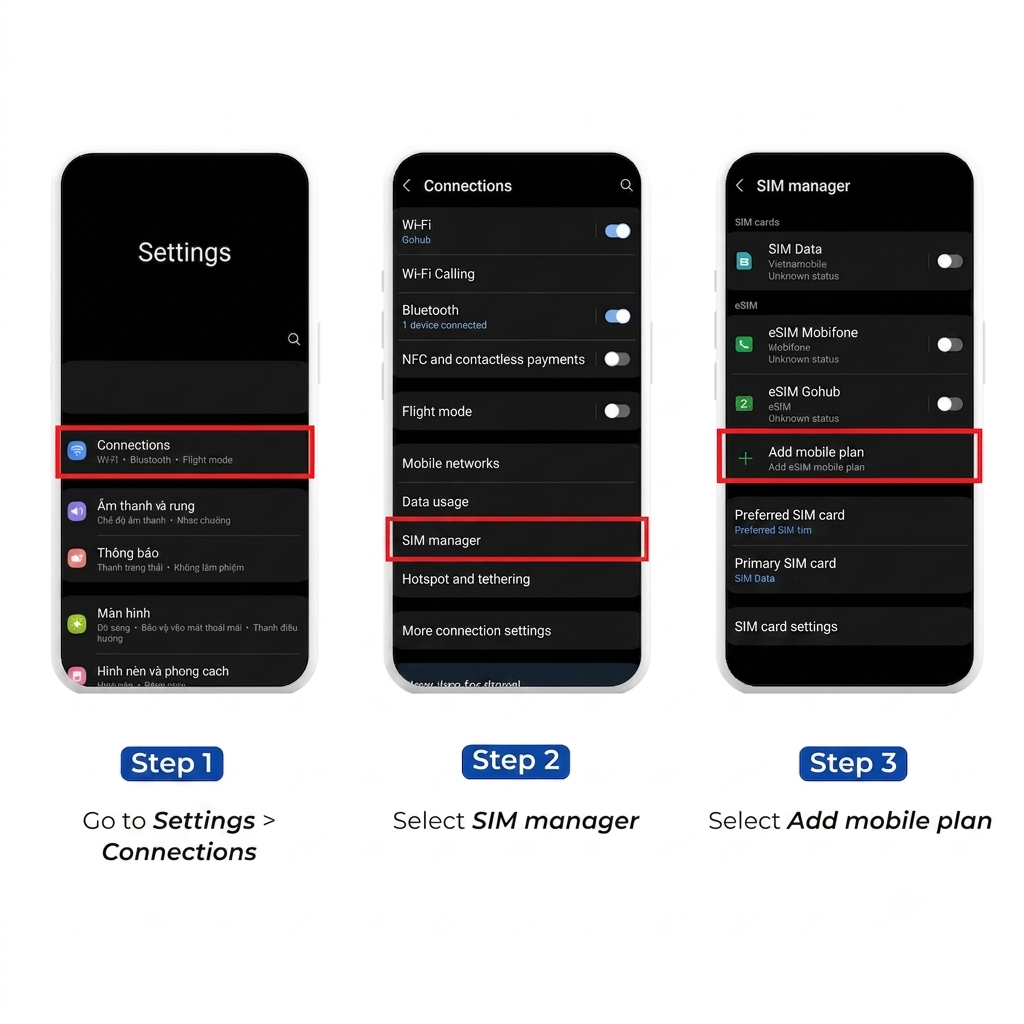
- Go to Settings > Connections.
- Tap SIM Manager.
- Tap Add mobile plan.
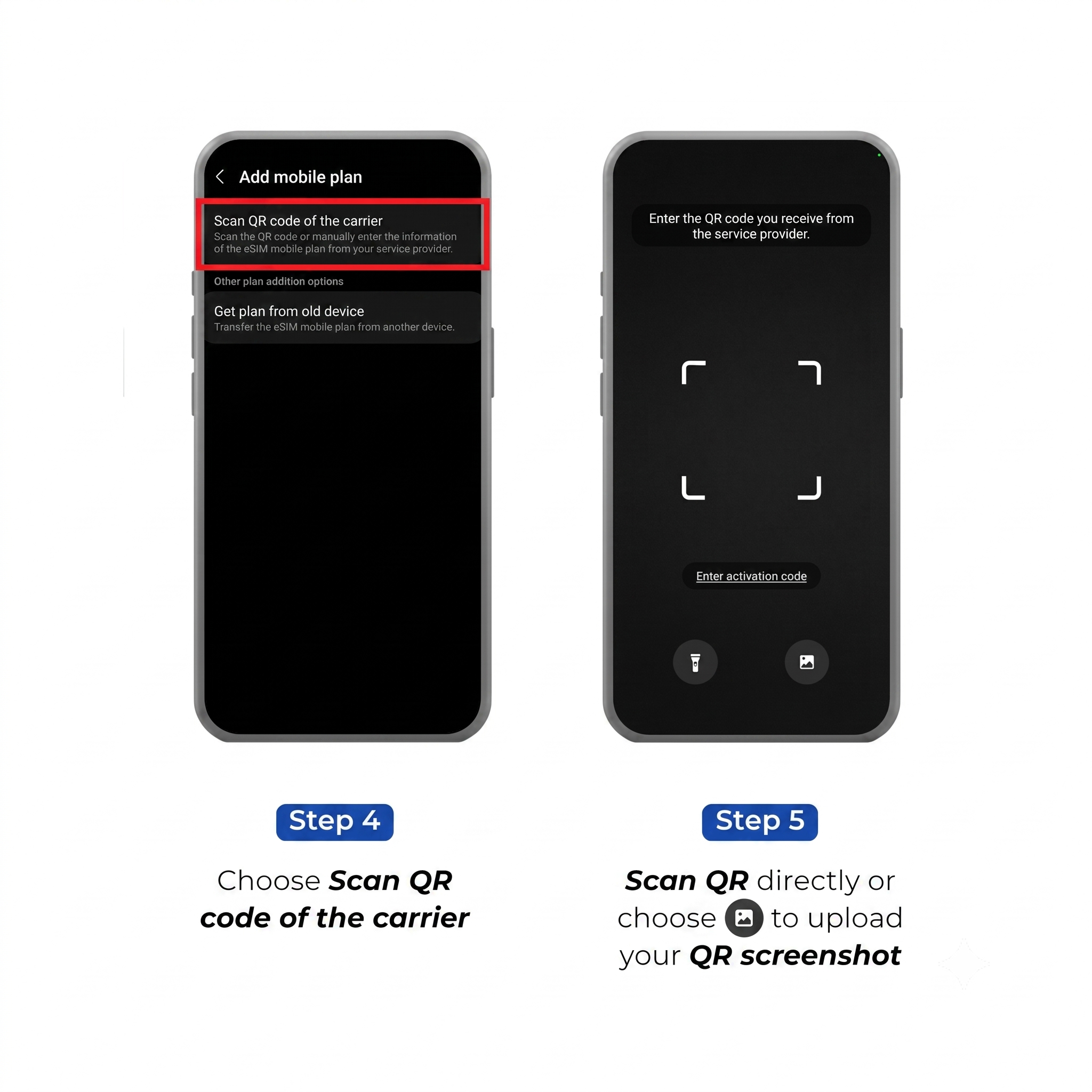
- Select Scan QR code.
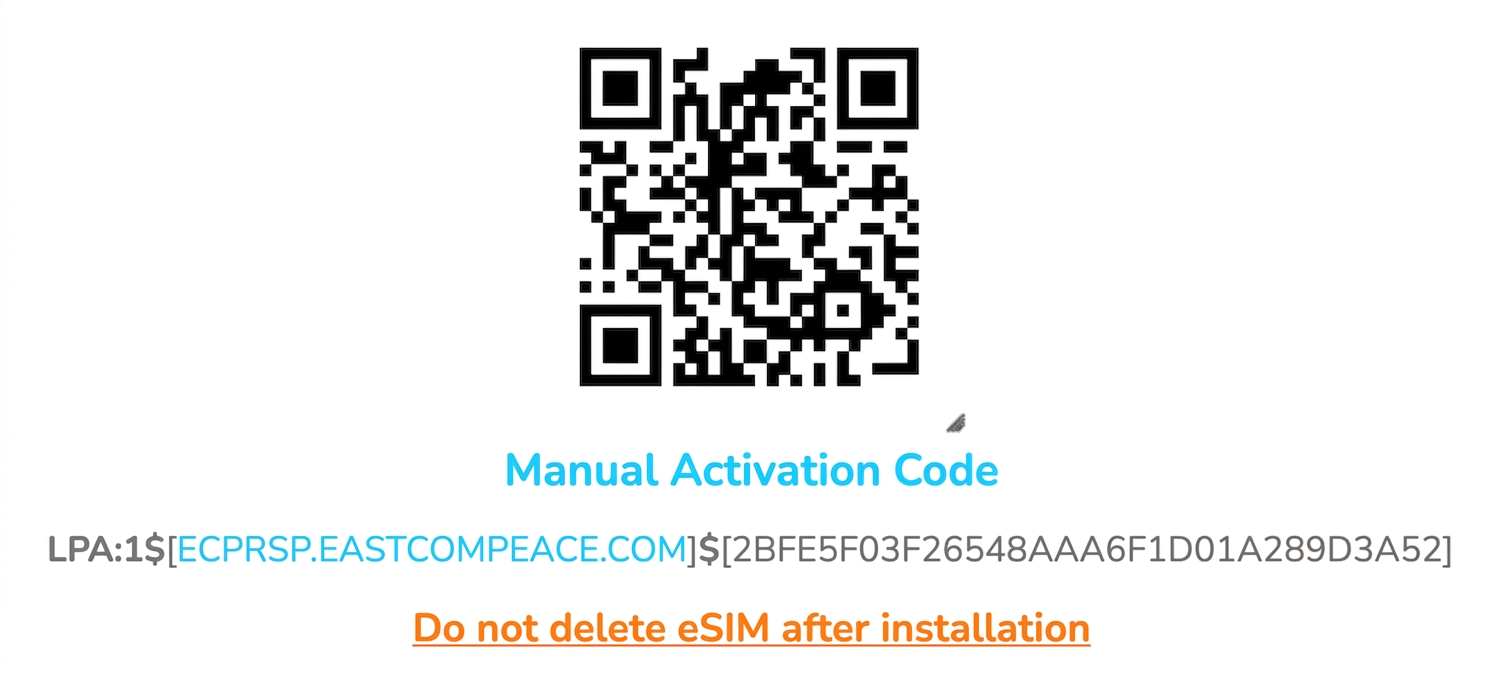
- Scan the QR code from your SimGlobal email, or tap Enter code manually. Some devices allow you to Upload a saved QR image.
- Tap Next to complete setup.
- When you arrive in the destination country, enable Data Roaming and Cellular Data to connect.
* eSIM validity starts from the moment of installation. * QR photo upload is supported on Galaxy S20+ and newer models.
How to Set Up APN for TikTok / ChatGPT
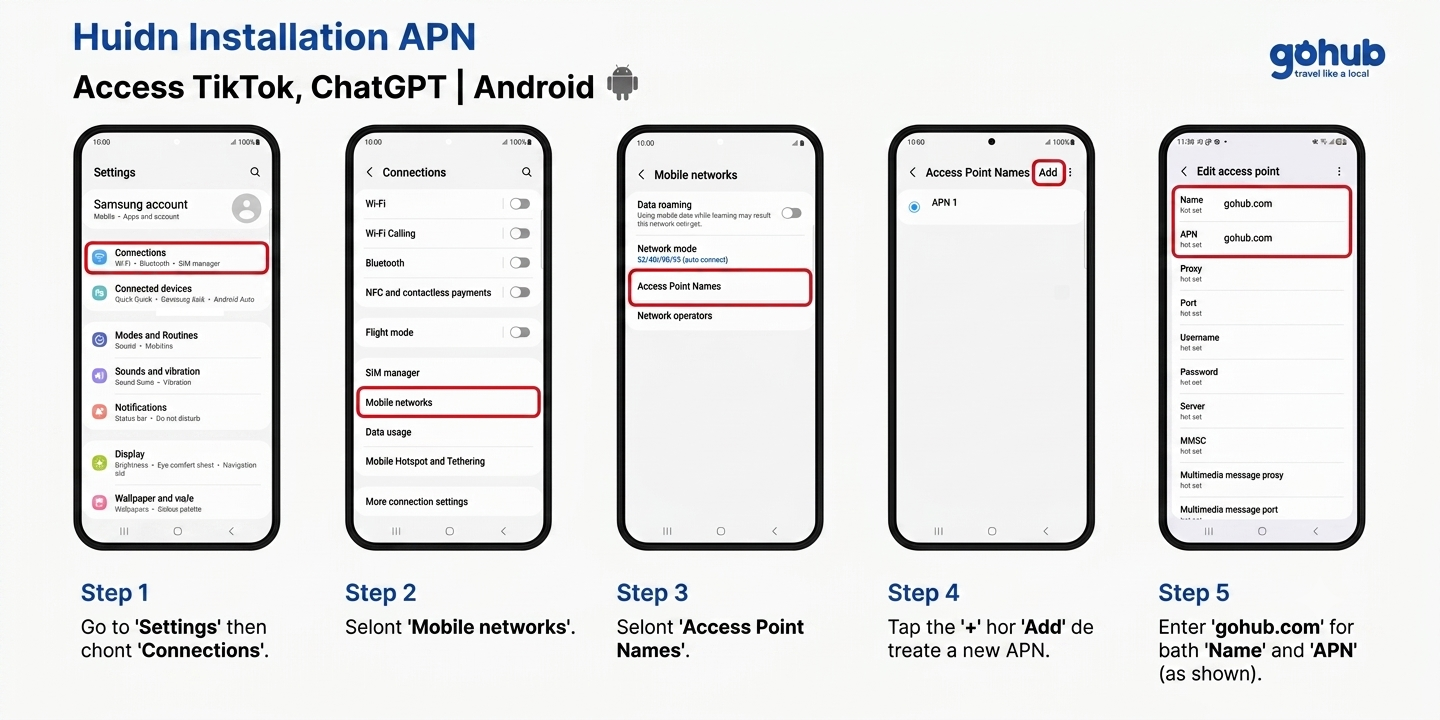
Note: This guide applies to certain international travel SIM/eSIM plans that require an APN change to use TikTok or ChatGPT. Please contact SimGlobal's 24/7 customer support team for direct assistance:
- – Hotline/Zalo: 0866440022
- – Email: cs@gohub.com
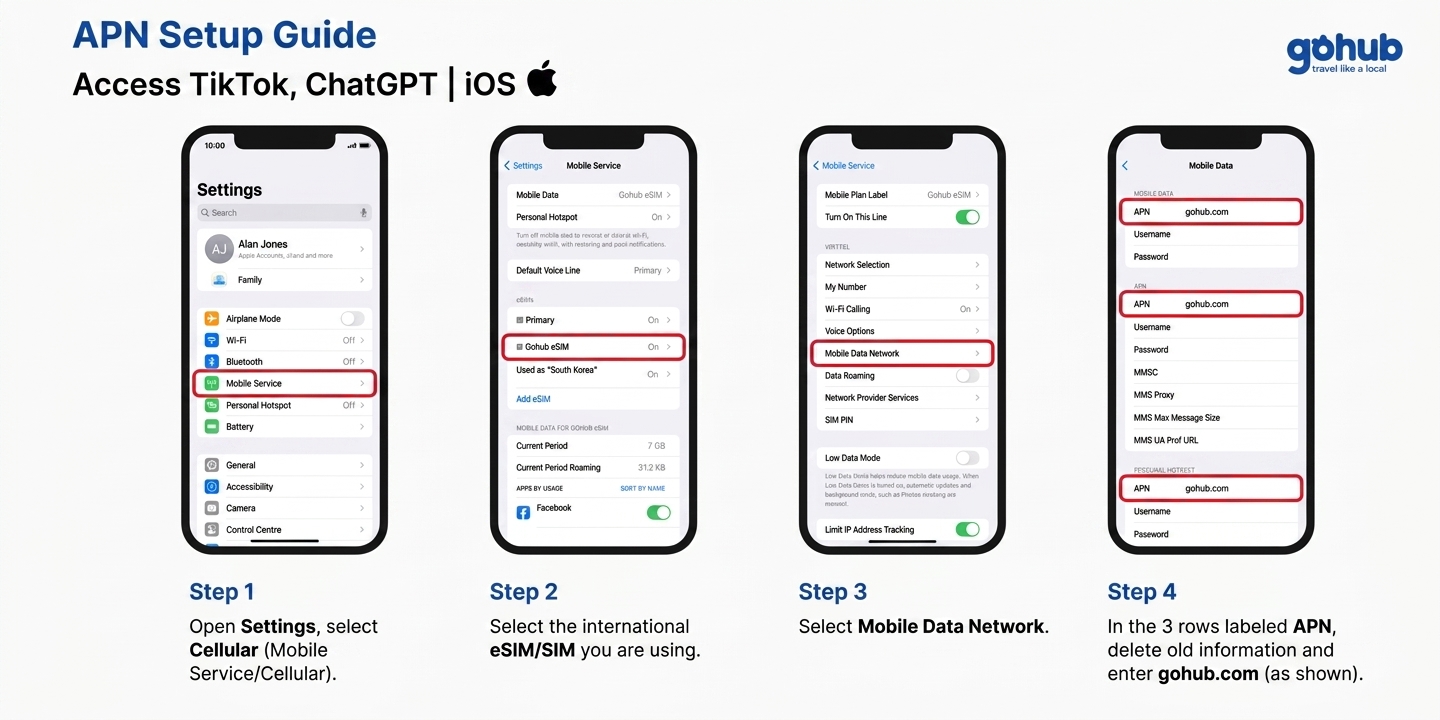
APN Setup Guide for iPhone
APN Setup Guide for Android
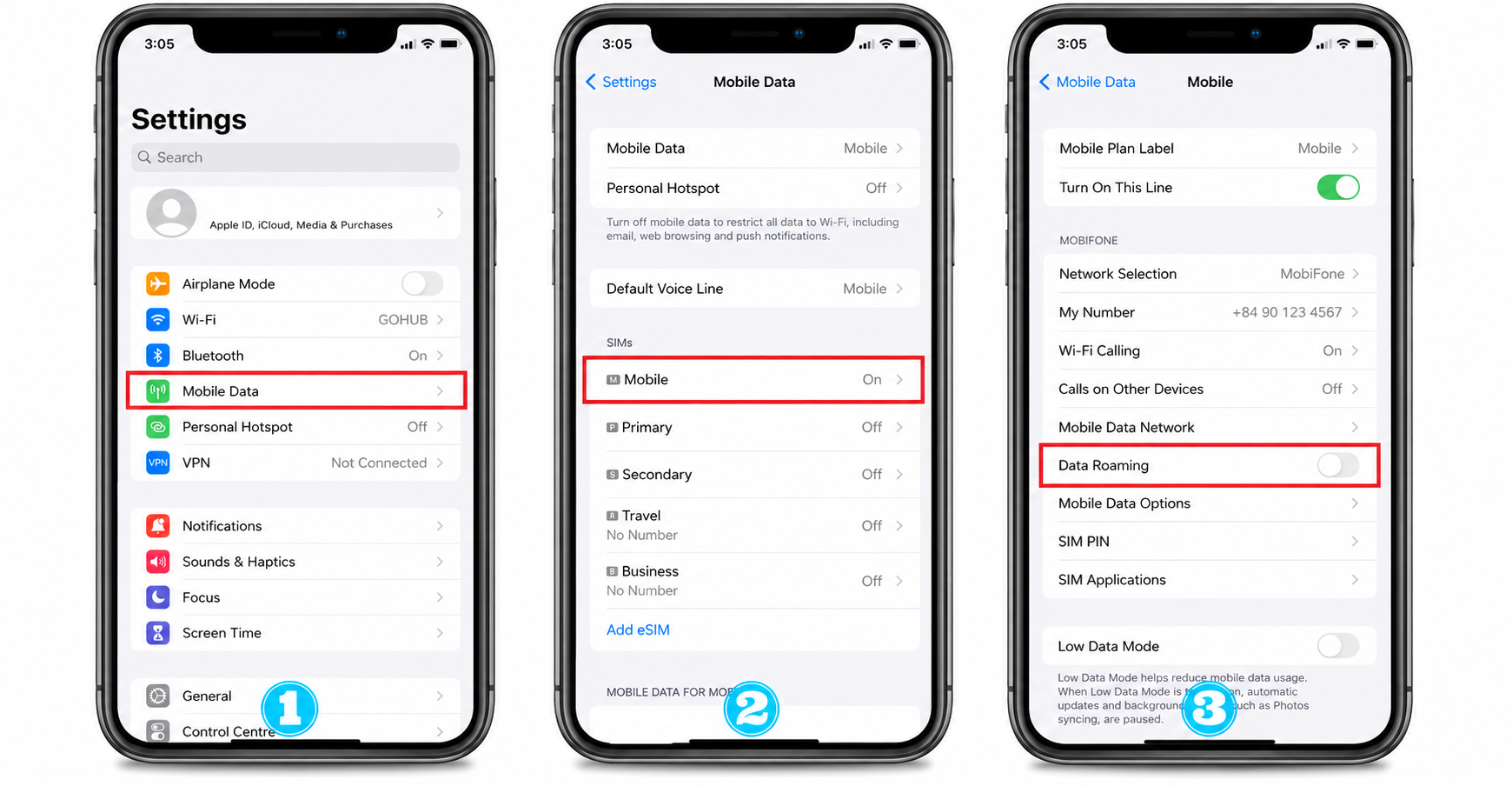
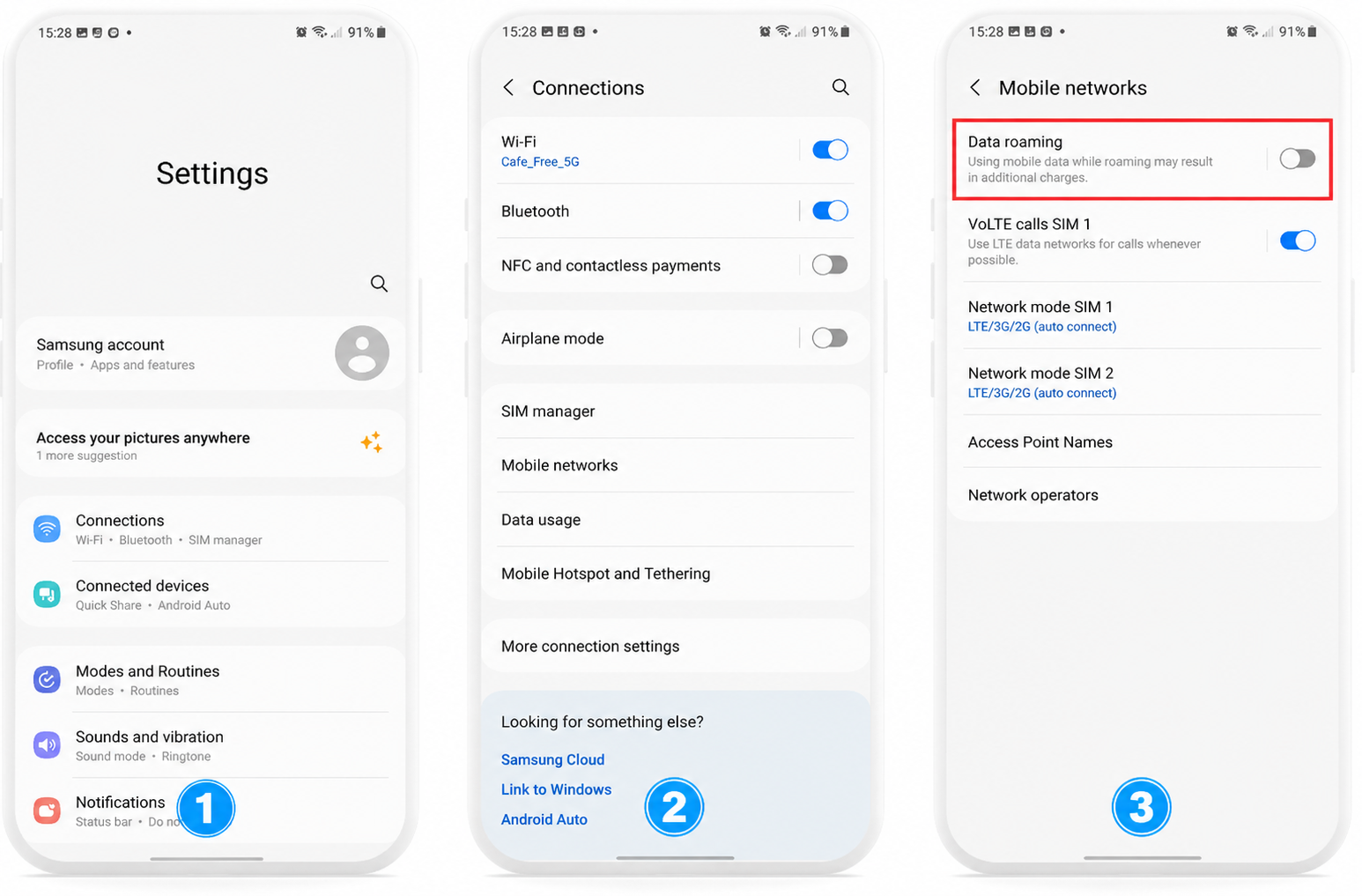
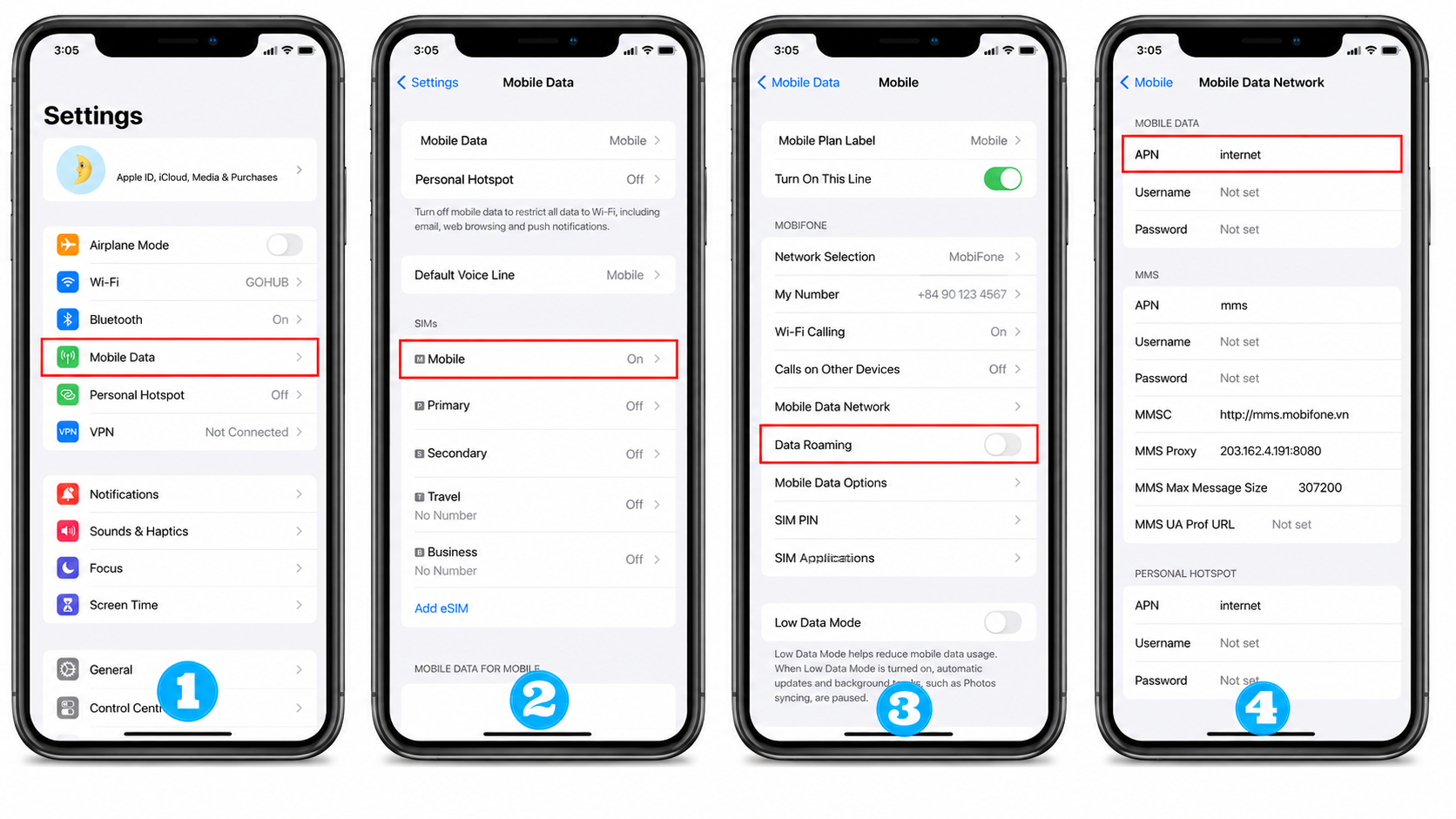
Data Roaming Guide
*Please make sure you are in the destination country before enabling your eSIM.
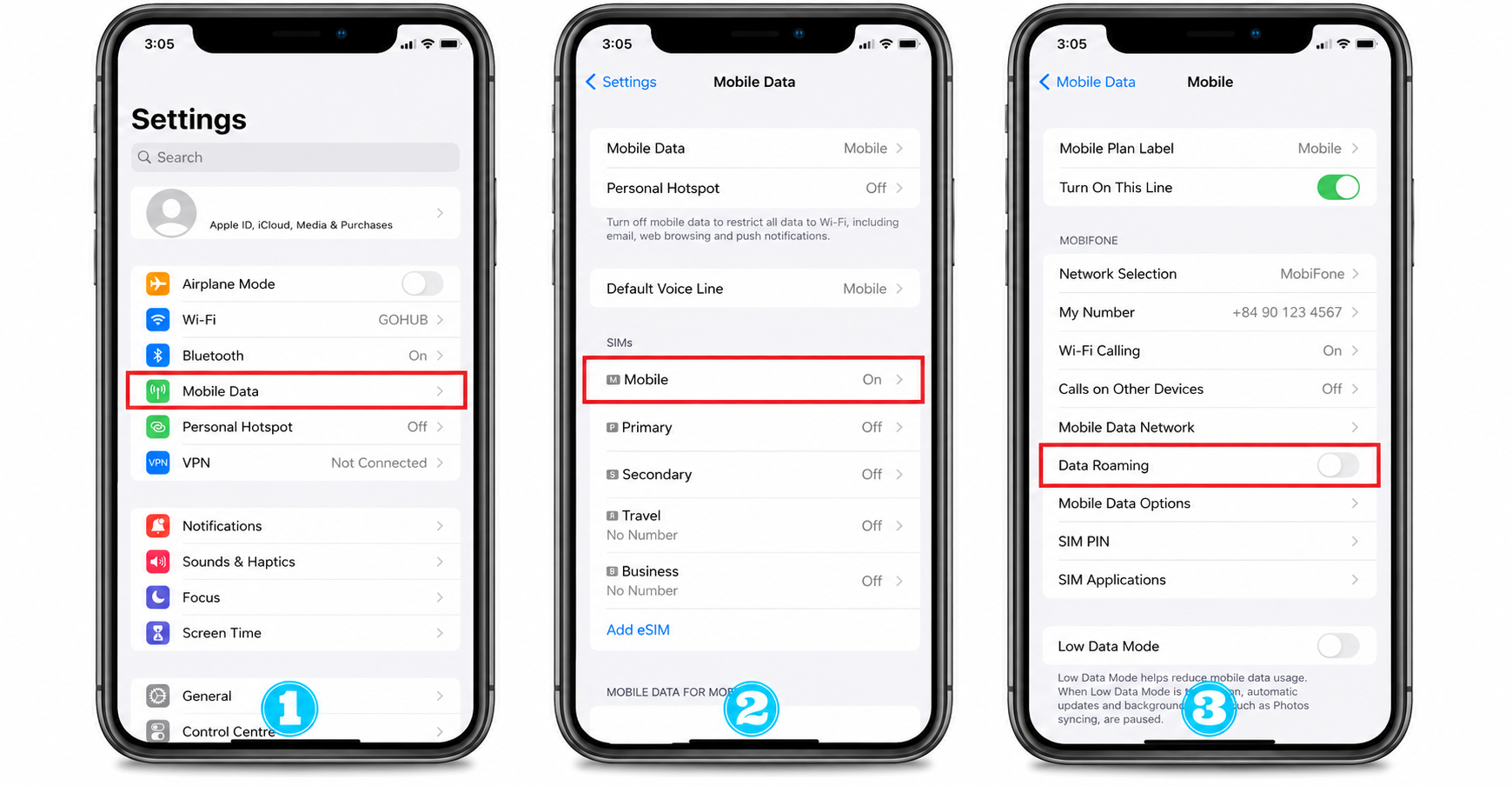
iOS
Go to Settings > Cellular > select the SIM to enable roaming on > turn on "Data Roaming".
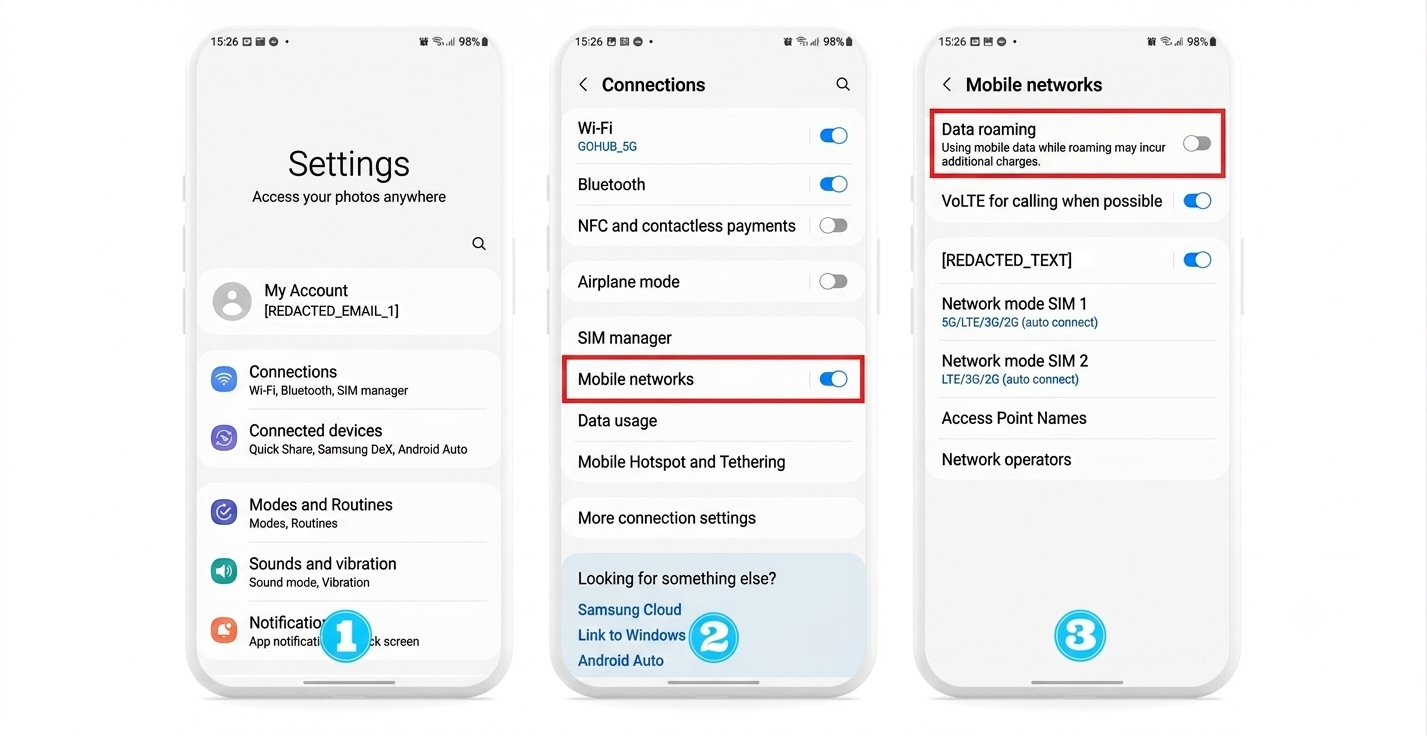
Android
Go to Settings > Connections > Mobile Networks > turn on "Data Roaming".
If you still cannot resolve the issue, please contact SimGlobal support as soon as possible via Zalo: 0866440022 for direct assistance.
Common Issues
Cannot install eSIM
eSIM installed successfully but no signal
 Android:
 Option 2: Try restarting your phone or wait 5–10 minutes, as some networks take a little longer to activate.
If you still cannot resolve the issue, please contact us as soon as possible via Zalo 0866440022 for support.
Option 2: Try restarting your phone or wait 5–10 minutes, as some networks take a little longer to activate.
If you still cannot resolve the issue, please contact us as soon as possible via Zalo 0866440022 for support.
eSIM shows signal but cannot connect to internet (APN issue)
 Android:
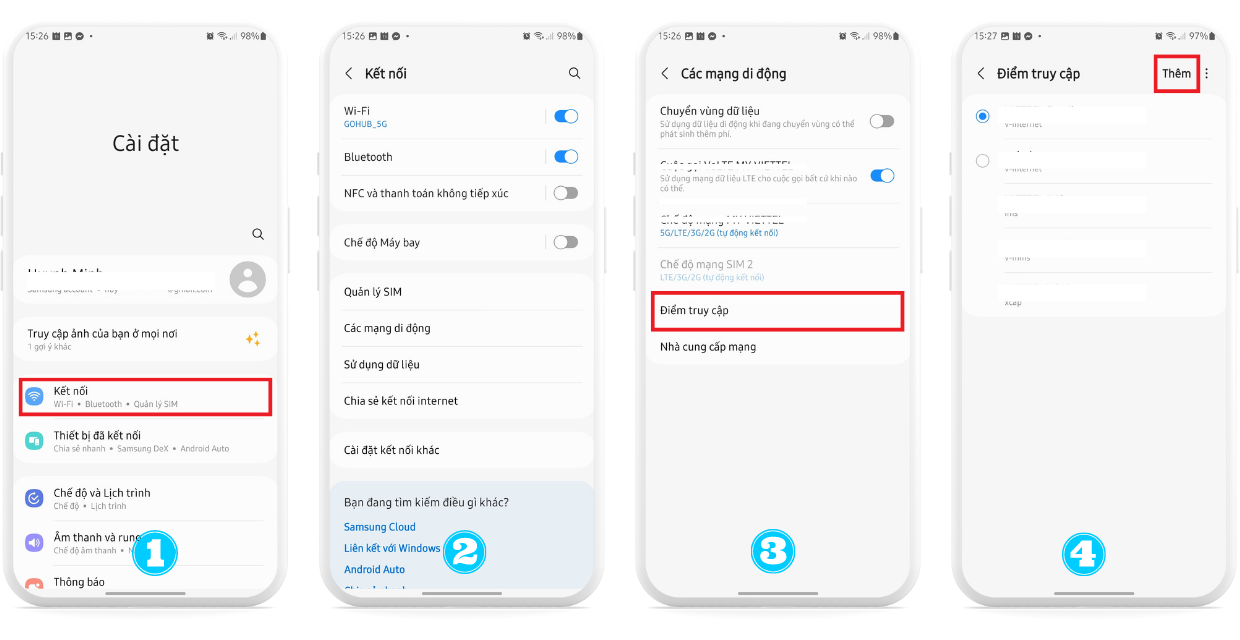
Go to Settings > Connections > Mobile Networks > Access Point Names > Tap Add > Enter the APN information provided in your eSIM Information email.
Android:
Go to Settings > Connections > Mobile Networks > Access Point Names > Tap Add > Enter the APN information provided in your eSIM Information email.
 If you still cannot resolve the issue, please contact us as soon as possible via Zalo 0866440022 for support.
*If your issue is not listed above, please click here to see solutions for other issues.

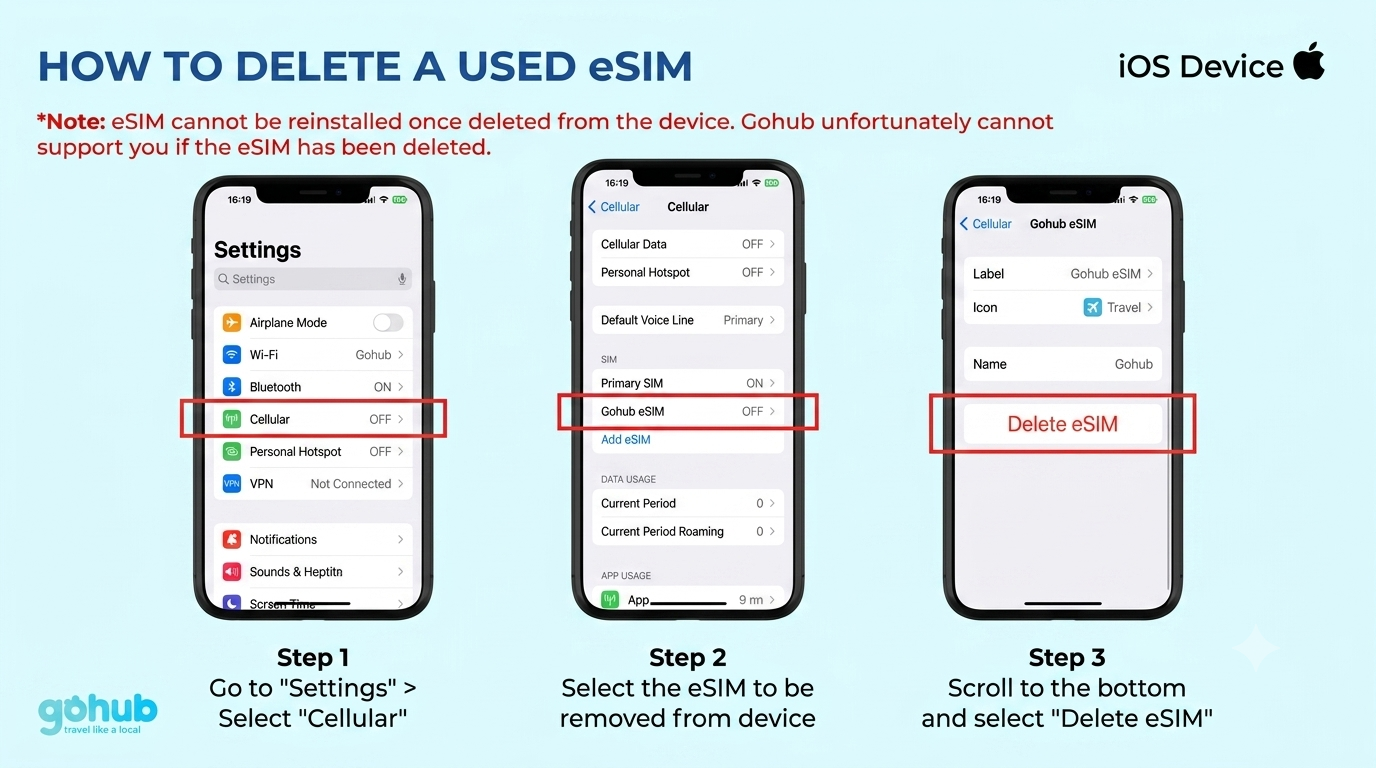
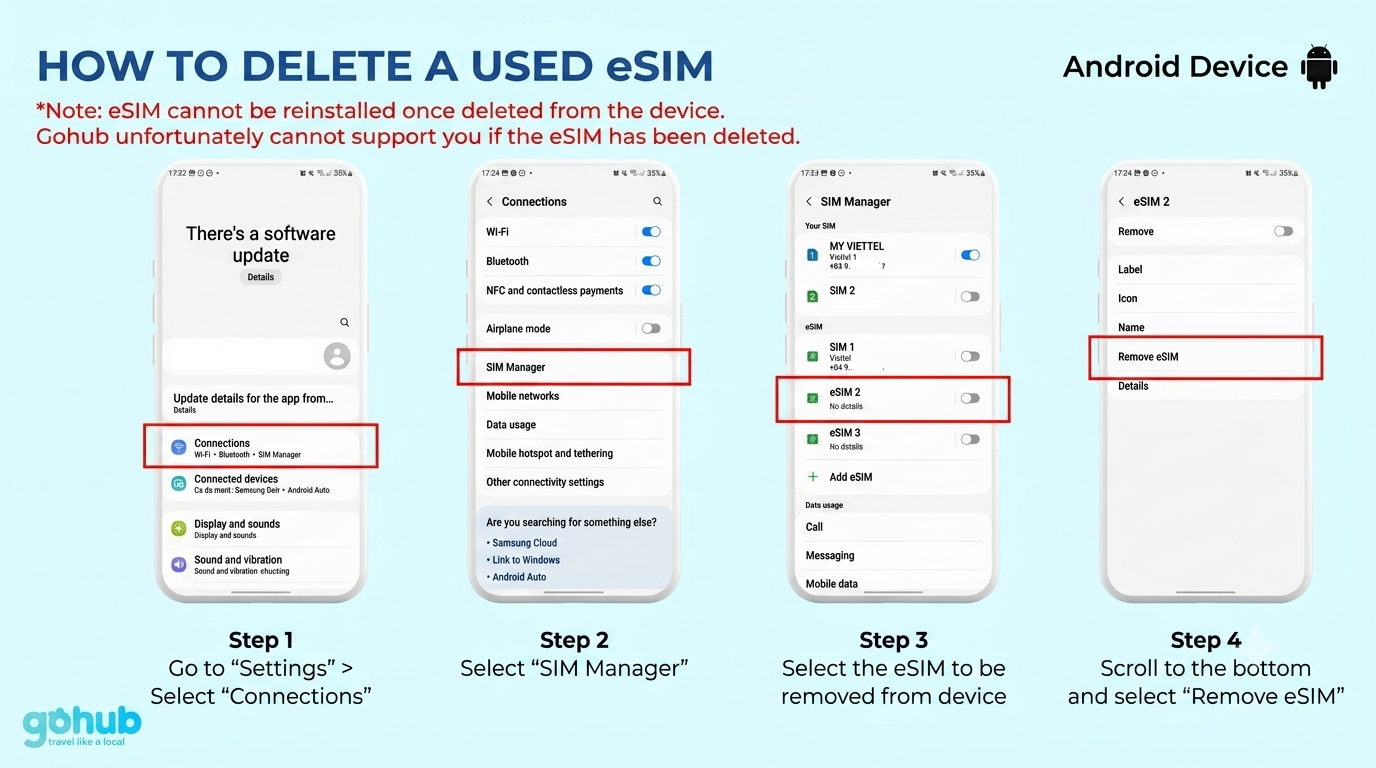
Warning: Once an eSIM is deleted from your device, it cannot be reinstalled. SimGlobal is unable to assist if an eSIM has been deleted.
iOS
Go to Settings > Cellular > Select the eSIM to delete > Scroll to the bottom and tap Delete eSIM.
Android
Go to Settings > Connections > SIM Manager > Make sure the eSIM is enabled. Scroll down to identify the active eSIM under Mobile Data, then select it and tap Delete eSIM.
iOS
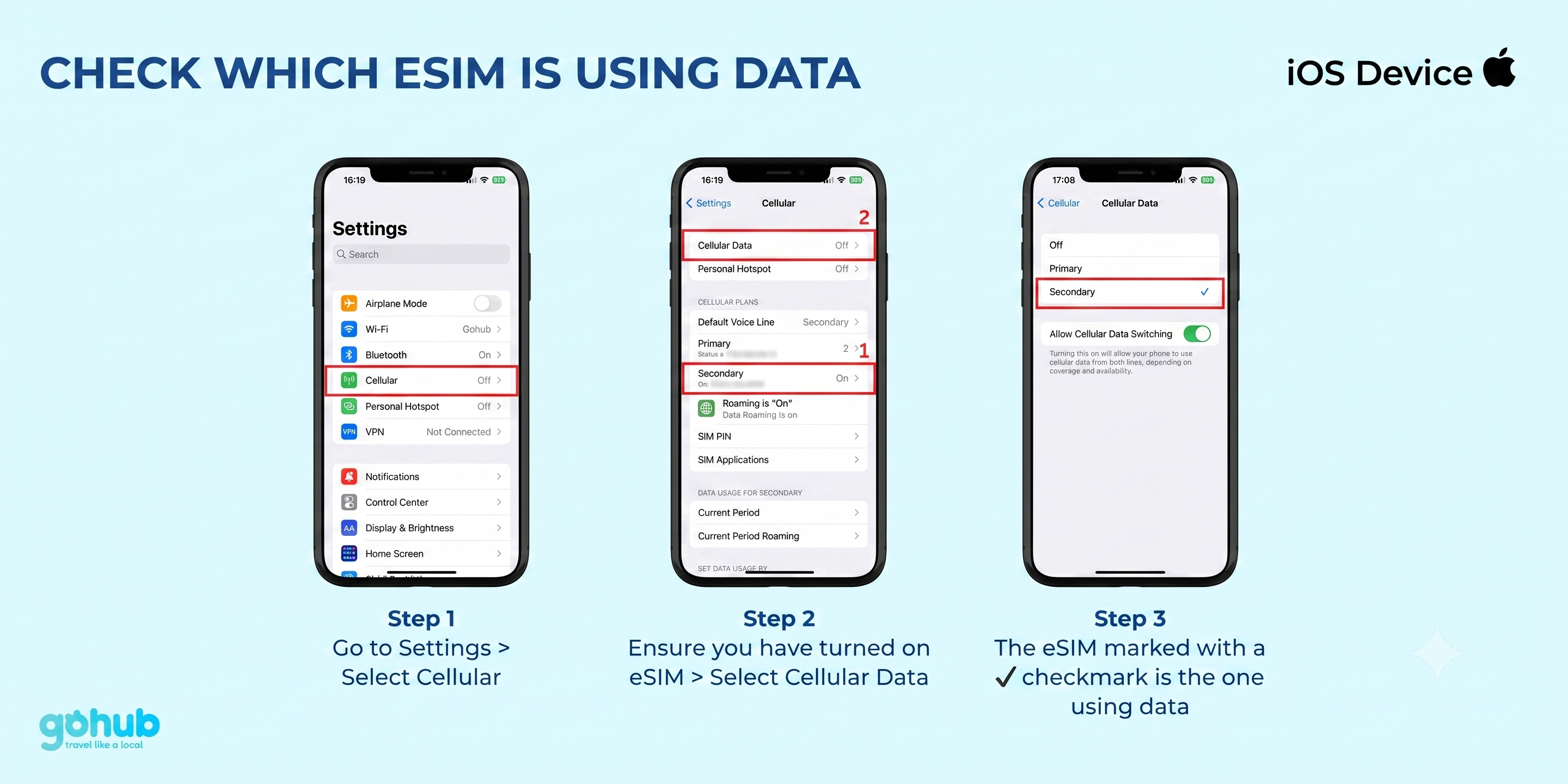
Go to Settings > Cellular > Make sure the eSIM is enabled > tap Cellular Data > the eSIM marked with ✔️ is the one currently using data.
Android
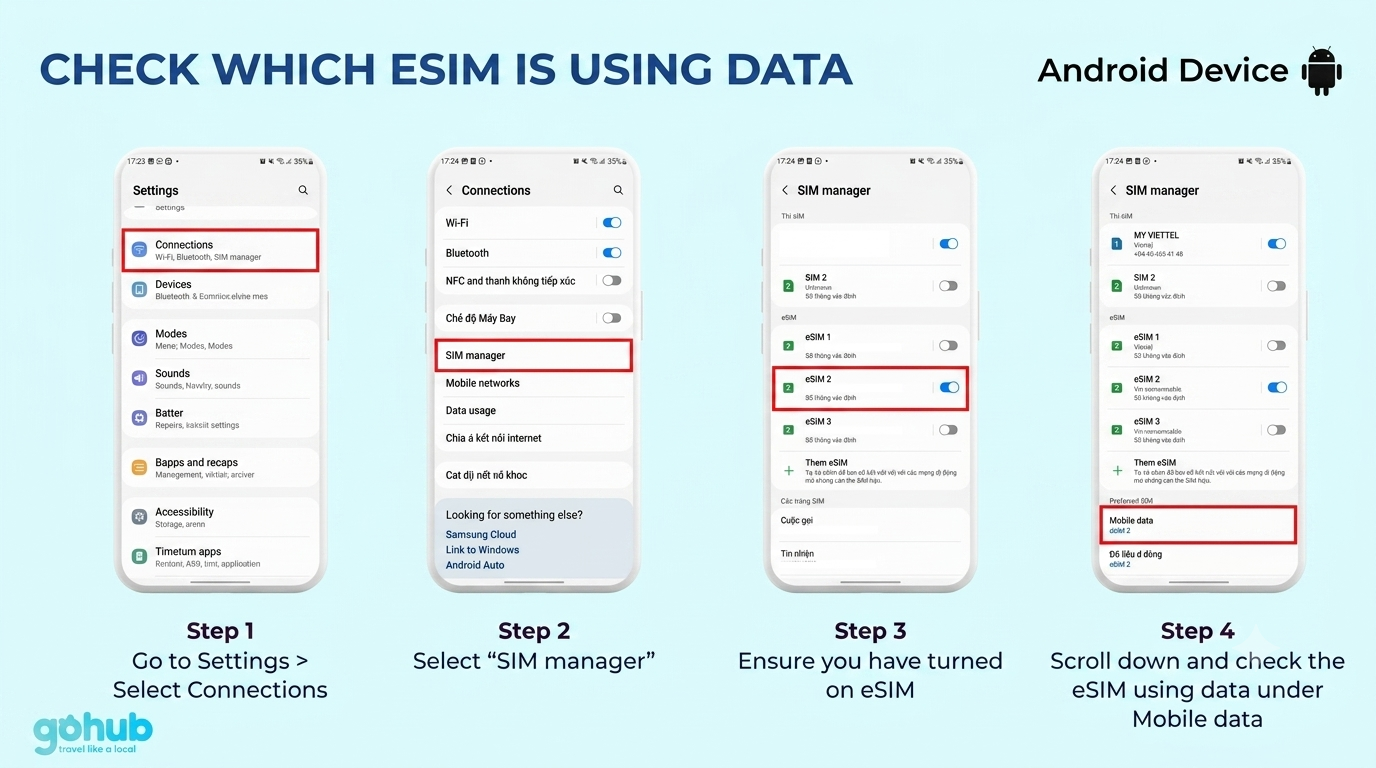
Go to Settings > Connections > SIM Manager > make sure the eSIM is enabled > scroll down and check which eSIM is active under Mobile Data.
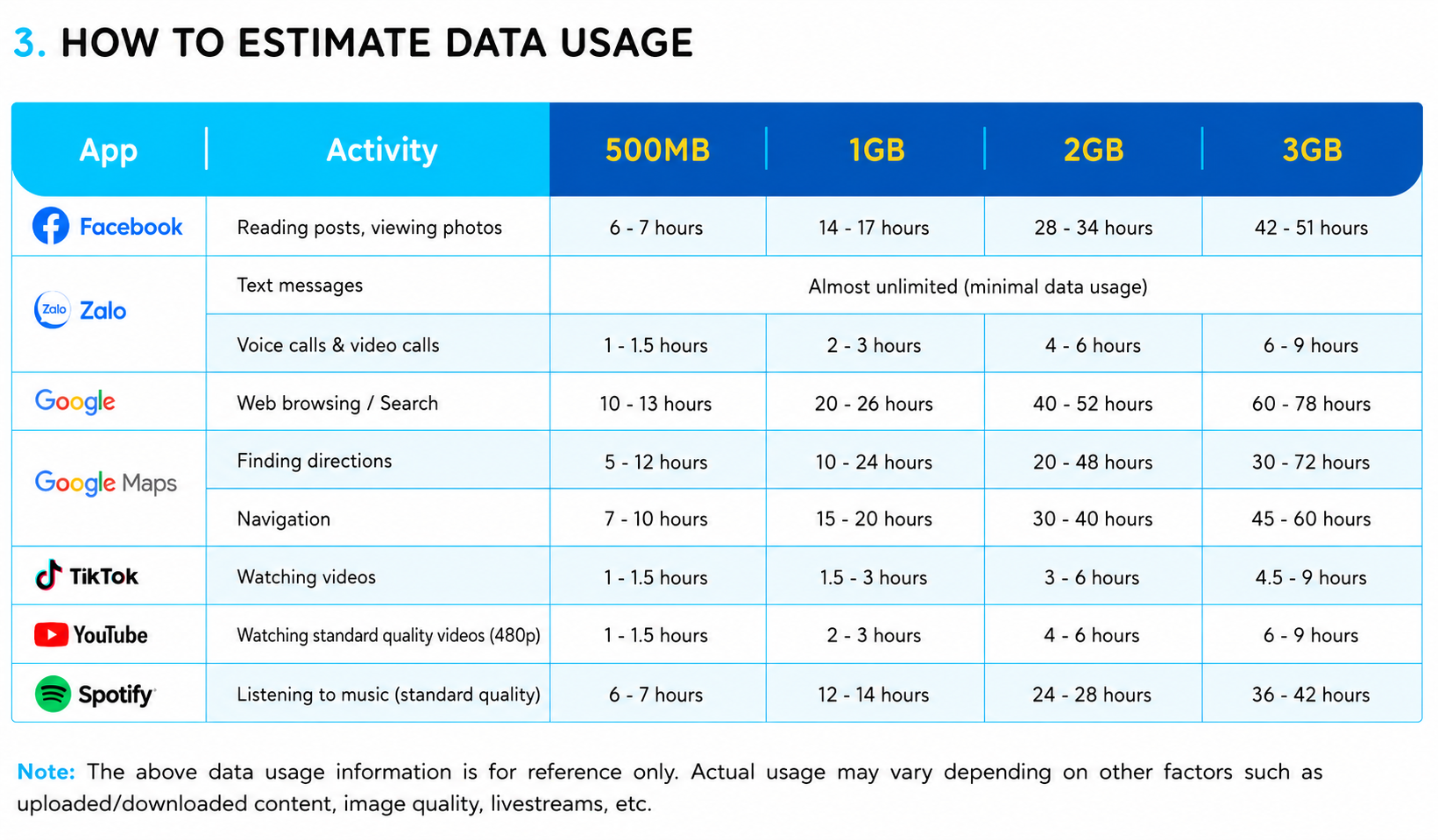
"Current roaming data" shows the total data used in one cycle. To accurately estimate daily data consumption, reset the data counter at the end of each day so you can easily track how much you use.
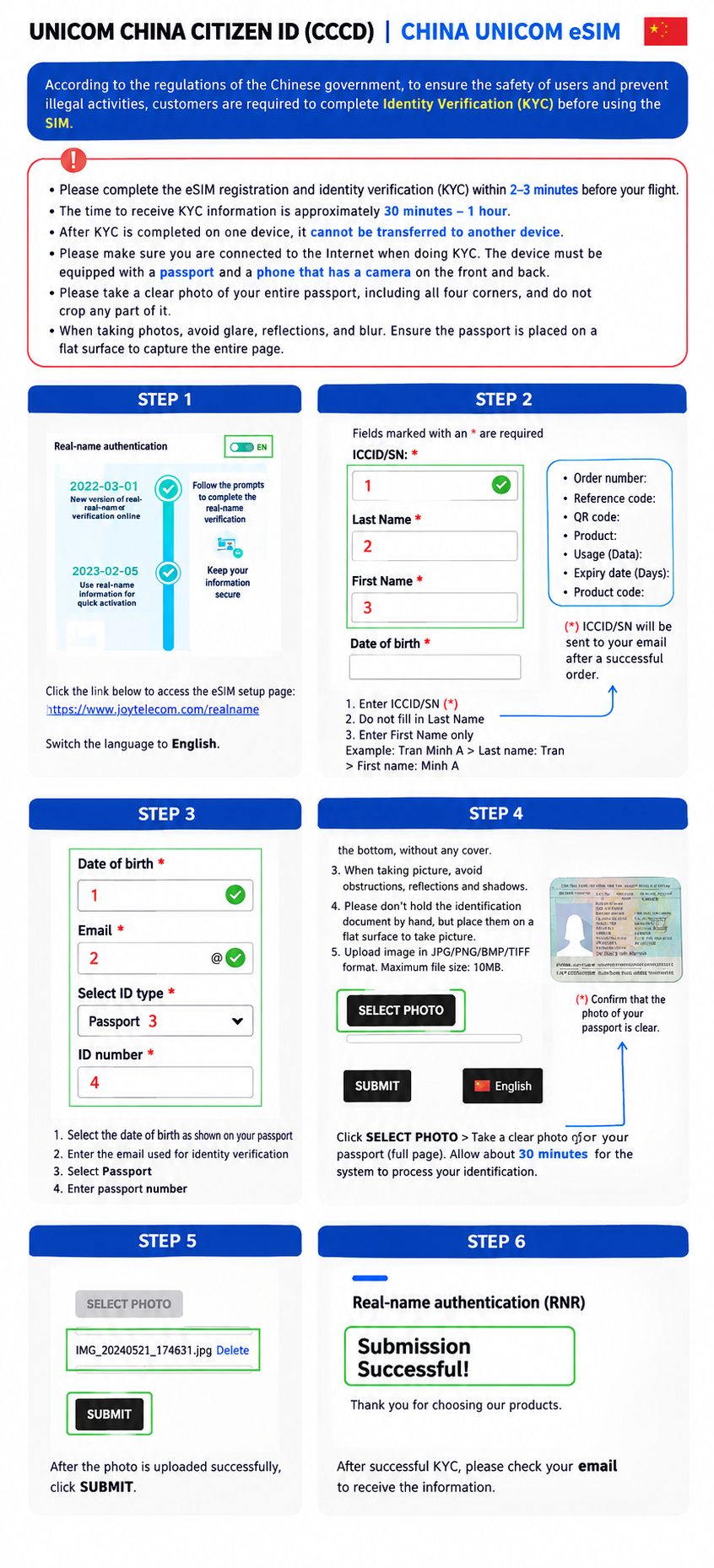
KYC Process for Taiwan eSIM
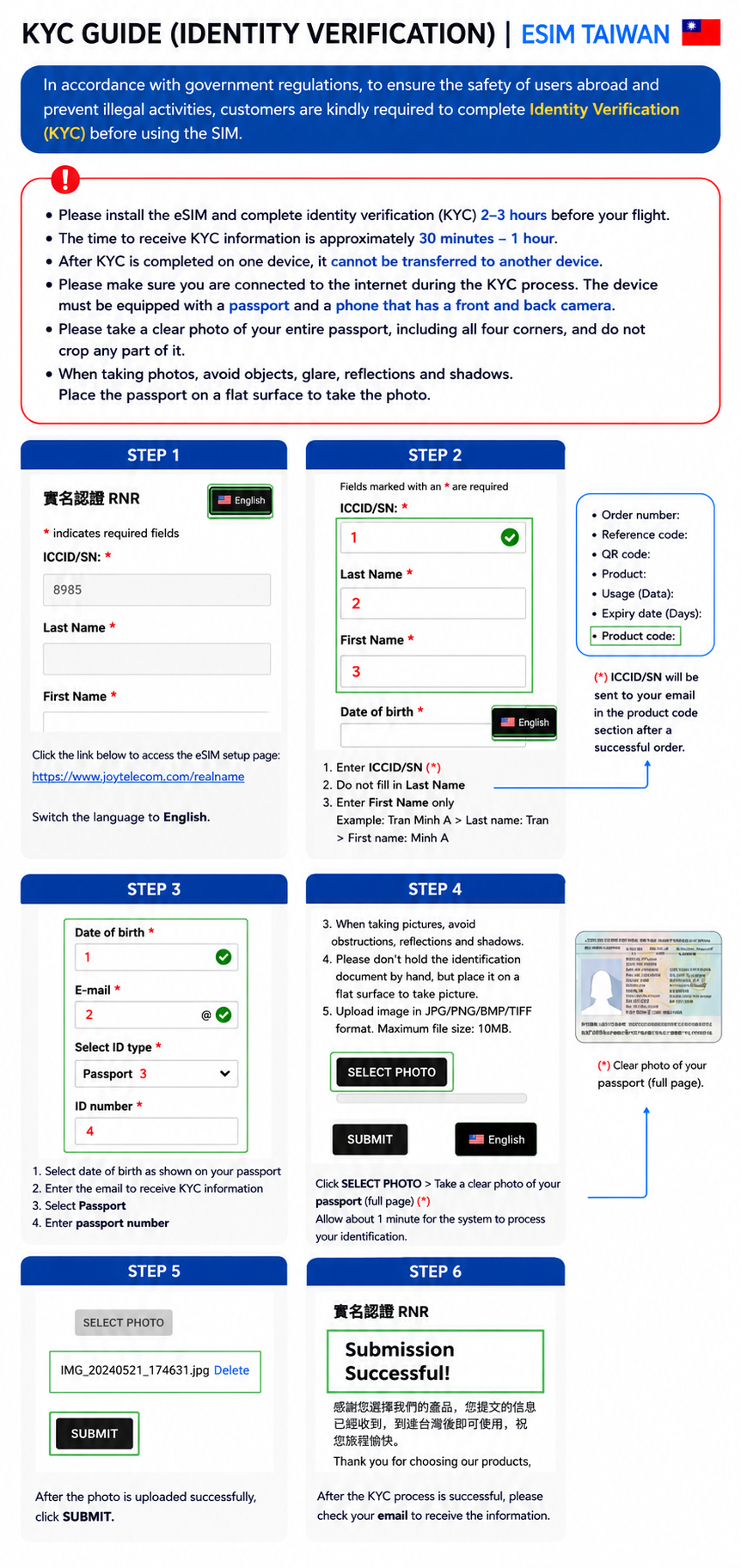
KYC Process for Hong Kong eSIM